

Create a form in the dashboard, copy its submission address, and point your site’s <form> or JavaScript code at it. Rondyr accepts plain HTML forms, fetch calls from another domain, and server-side submissions.
1. Create a form and copy its address
Open Settings → Forms in the dashboard. If you already created a form during initial setup, select it; otherwise select + New, give it a name, and describe your business so the spam filter knows what messages belong there.
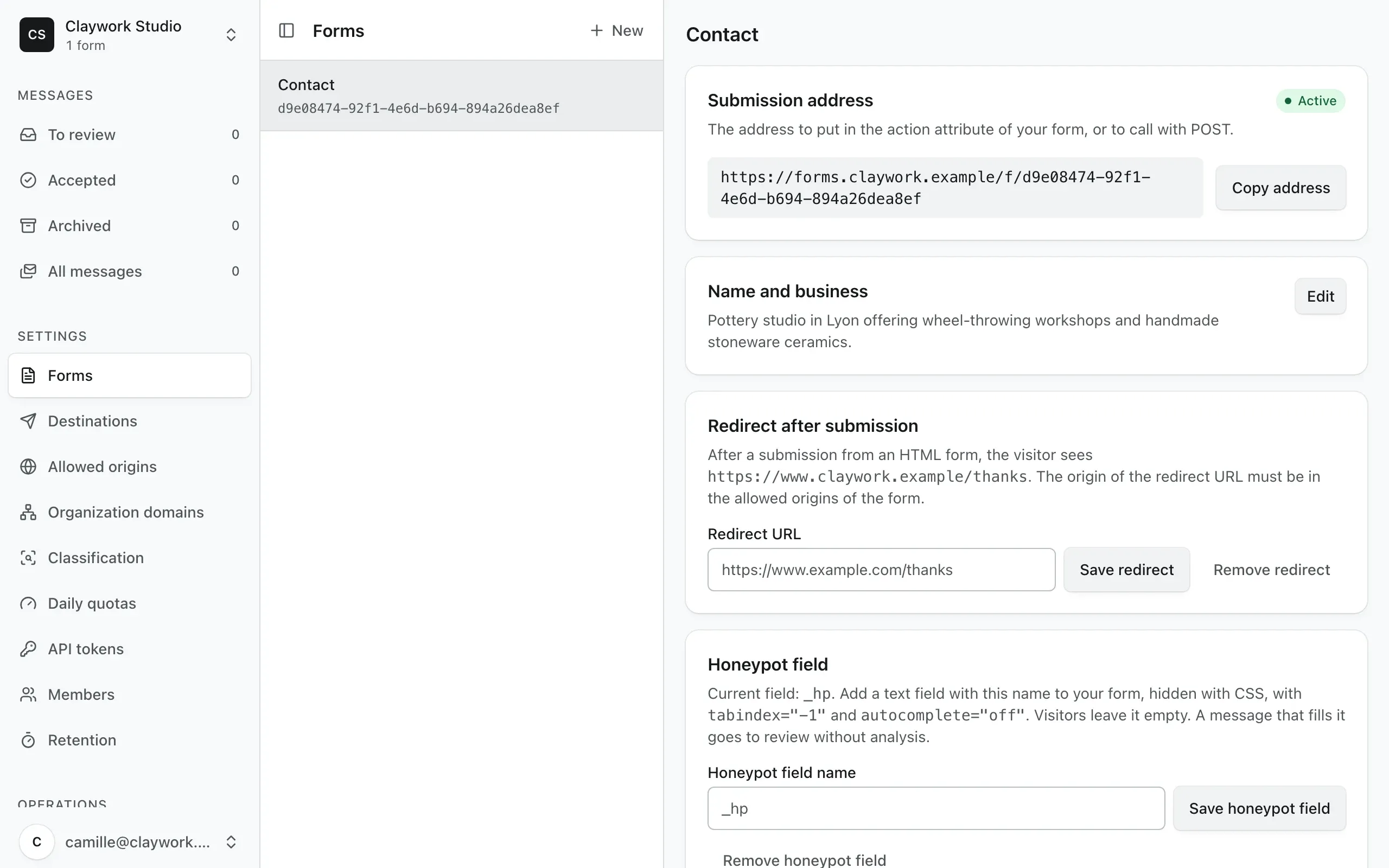
Select Copy address to copy your form’s public URL. It looks like https://forms.example.com/f/YOUR_PUBLIC_ID and never changes, even if you rename the form later.
2. Add an HTML form to your page
Paste the copied URL into the action attribute of any standard HTML form:
<form action="https://forms.example.com/f/YOUR_PUBLIC_ID" method="post"> <label> Name <input type="text" name="name" required /> </label> <label> Email <input type="email" name="email" required /> </label> <label> Message <textarea name="message" required></textarea> </label> <button type="submit">Send</button></form>You can choose any field names you like. Naming the visitor’s address field email has two handy effects: Rondyr uses it as the Reply-To address on notification emails, and uses it to detect repeated spam from the same sender.
Send a test message from your page. Within a few seconds, it shows up in Accepted or To review in the dashboard. Next, set up email, webhooks or a connector to Discord, Slack or Airtable, so accepted messages reach your team automatically, and add basic spam protection.
Redirect visitors after submission
By default, visitors who submit an HTML form see Rondyr’s built-in confirmation page (in English or French, matching their browser language). To send them back to your own thank-you page instead:
- Open Settings → Allowed origins, pick your form, and add your site’s origin (for example
https://www.example.com). - Open Settings → Forms, pick the same form, enter your full HTTPS thank-you URL under Redirect after submission (such as
https://www.example.com/thanks), and select Save redirect.
Rondyr requires the redirect URL’s origin to be in the form’s allowed origins list so nobody can point your visitors elsewhere. To remove that origin later, remove the redirect URL first.
Submit with JavaScript (fetch)
If you want to submit without leaving the page, send a JSON POST request to the same form URL. Rondyr handles cross-origin requests automatically, so browser scripts on your site can call it directly:
const response = await fetch("https://forms.example.com/f/YOUR_PUBLIC_ID", {  method: "POST",  headers: { "content-type": "application/json" },  body: JSON.stringify({    name: "Daniel",    email: "daniel@example.com",    message: "Could you send a quote for 40 stoneware cups?",  }),});
if (!response.ok) {  throw new Error(`Submission failed with status ${response.status}`);}
const { "submission-id": submissionId } = await response.json();
Don’t pass credentials: "include" in fetch; Rondyr doesn’t use cookies on form submissions, and browsers block credentialed requests to it.
A 202 response confirms that Rondyr saved the message and started spam screening. If your server validates the form first and forwards it on the visitor’s behalf, use server intake with an API token instead.
For a server that forwards the visitor’s Turnstile token, send Rondyr-Turnstile: verify and put the token in cf-turnstile-response. You can include Rondyr-Visitor-IP so Siteverify checks the token with the visitor’s address. Configure the keys on the Rondyr form. Messages with missing, refused, or expired tokens go to To review.
Restrict which websites can submit
By default, a form accepts browser submissions from any origin. To make sure only pages on your own website can submit to it:
- Open Settings → Allowed origins and select the form.
- Enter your site’s origin, such as
https://www.example.com, and select Add origin.
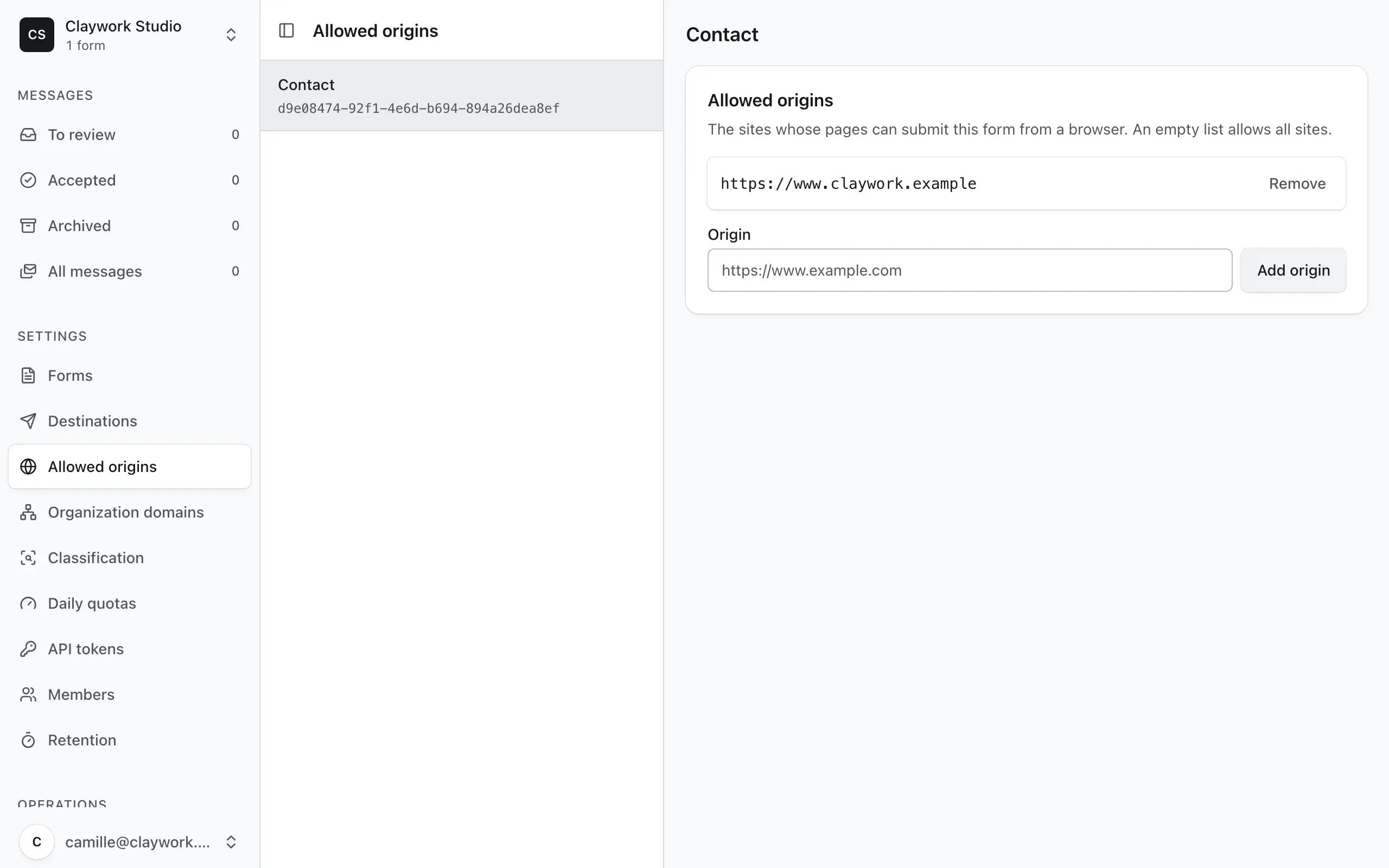
An origin is just the scheme, host, and optional port, with no path or wildcard. Origins must use https://, except http://localhost and loopback addresses (http://127.0.0.1:8080) for local testing. Once a form lists at least one origin, browsers on any other site are refused. Keep in mind that allowed origins stop other websites from submitting through their visitors’ browsers, not automated scripts outside a browser; see Fight spam for bot defenses.
Field rules and limits
- Formats:
application/x-www-form-urlencoded,multipart/form-data(text fields only), andapplication/json. - No file uploads: If a
multipart/form-dataform includes a file input (even one left empty), Rondyr refuses the submission. - Size and field count: Up to 16 KiB per submission, 1 to 32 fields, field names up to 100 characters (no line breaks or control characters), and values up to 4,000 characters.
- Checkboxes and multi-select fields: When an HTML form sends the same field name more than once (such as checkboxes), Rondyr joins the values with
,in the order received (for exampletopic: "glaze, kiln"). JSON submissions accept string values only. - Rate limits: Each visitor can submit up to 5 times per minute to a form, and each form accepts up to 30 submissions per minute across all visitors. See HTTP API for exact status codes and error handling.
Suspend a form
To pause submissions without deleting the form or losing its history, open Settings → Forms, scroll to Suspension, and select Suspend form. A suspended form refuses new submissions while keeping its existing messages, destinations, allowed origins, and submission address intact. Select Reactivate form whenever you want to accept messages again.